Catalog Sale user guide
Install, create promotions, manage plans — for merchants and subscribers.
Subscriber guide for Catalog Sale by GLMK Services LLC (Shopify App Store listing: GLMK Catalog Sale) — whole-catalog promotions without picking products one by one.
Support: support@glmkapps.com · glmkapps.com/support
Contents
- Install Catalog Sale
- Open Catalog Sale
- Your plan at a glance
- Create a promotion
- Discount types and how they apply
- Rules: minimum, schedule, tags, sale items, stacking
- Discount codes and bulk codes
- Manage promotions (activate / deactivate)
- Verify in Shopify Discounts and at checkout
- Plan & usage and upgrades
- Plans and what you get
- Tips and limits
- Support
1. Install Catalog Sale
Look for this app icon in the Shopify App Store (and later under Apps in Admin):

- Sign in to Shopify Admin for the store where you want Catalog Sale.
- Open GLMK Catalog Sale on the Shopify App Store (or search GLMK Catalog Sale in Admin → Apps).
- Click Install / Add app.
- Review the permissions and click Install to approve.
You do not need to edit your theme. Catalog Sale runs inside Admin and applies discounts through Shopify’s discount system at checkout.
After install, continue with Open Catalog Sale below.
2. Open Catalog Sale
- Sign in to Shopify Admin for your store.
- Go to Apps → catalog-sale (or Catalog Sale).
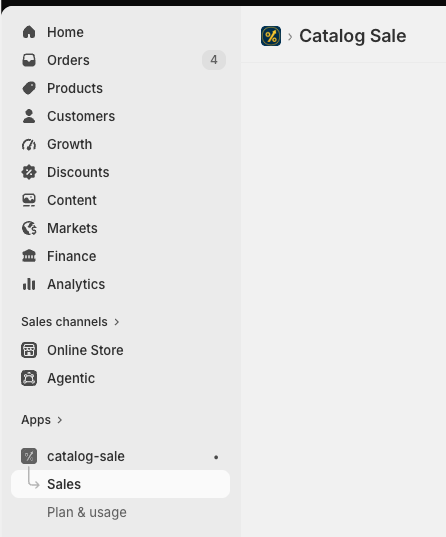
You land on the Sales page. The nav also has Plan & usage.
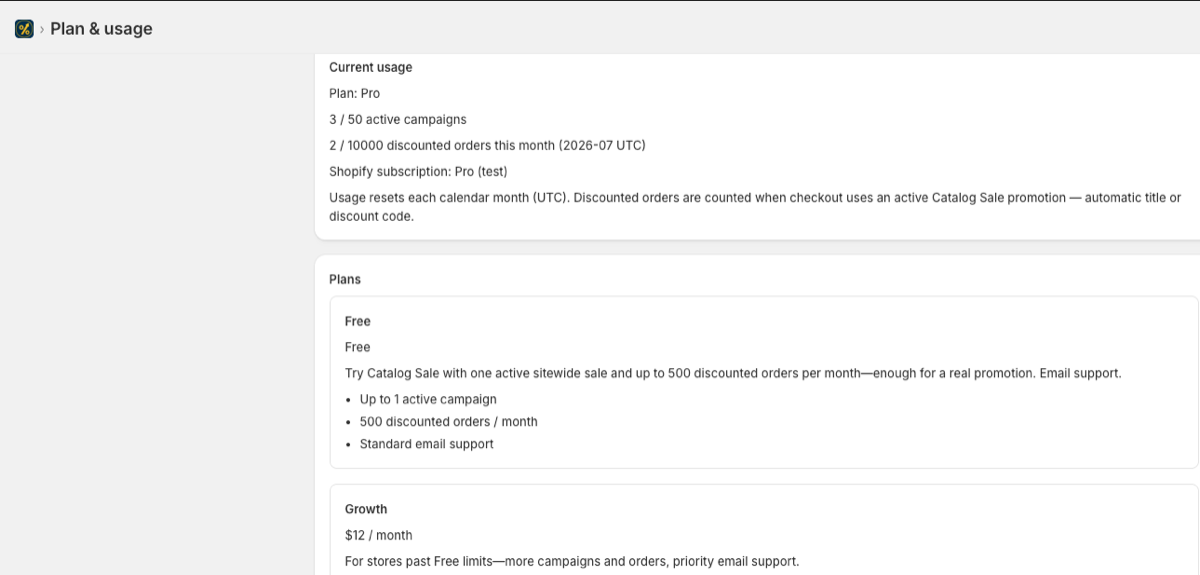
3. Your plan at a glance
On Sales, the Your plan section shows:
- Current plan name (Free, Growth, Pro, or Scale)
- How many active campaigns you can run
- Discounted orders used this month vs your limit
- Bulk code limit per campaign
If you approach or hit the order limit, a banner explains what still works and links to upgrade options.
4. Create a promotion
- Scroll to Create a promotion.
- Enter a Promotion name (shown in Shopify Discounts and on orders).
- Choose Discount type and How it applies.
- Fill type-specific fields (percent, amount, BOGO quantities, etc.).
- Optional: rules, tags, codes, stacking (sections below).
- Click Launch promotion.
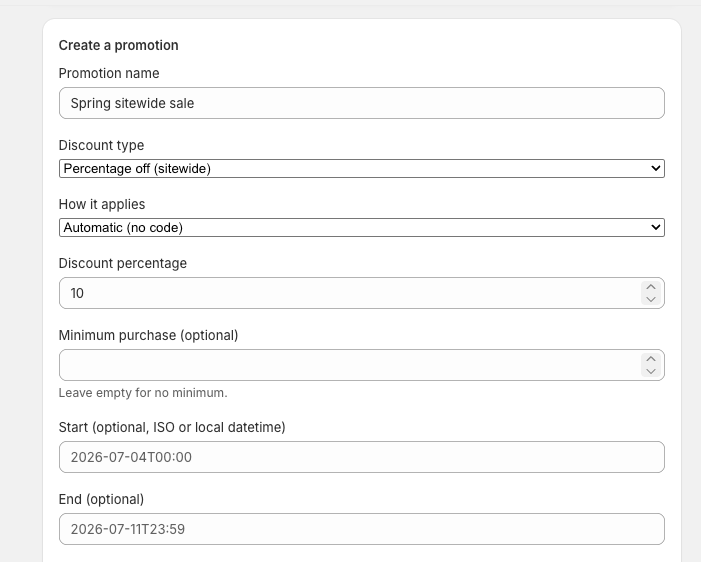
On Free (and other plans with a campaign cap), you may need to deactivate an active promotion before launching another.
5. Discount types and how they apply
Discount types
| Type | What it does |
|---|---|
| Percentage off (sitewide) | Percent off across the catalog (no ~100 product picker limit) |
| Fixed amount off (sitewide) | Fixed money off in your shop currency |
| Free shipping | Shipping promotion via Shopify's native free-shipping discount |
| BOGO / Buy X Get Y | Buy quantity / get quantity / get-items discount percent |
How it applies
- Automatic (no code) — applies at checkout when rules match
- Discount codes / coupons — customers enter a code (single prefix or many unique codes)
6. Rules: minimum, schedule, tags, sale items, stacking
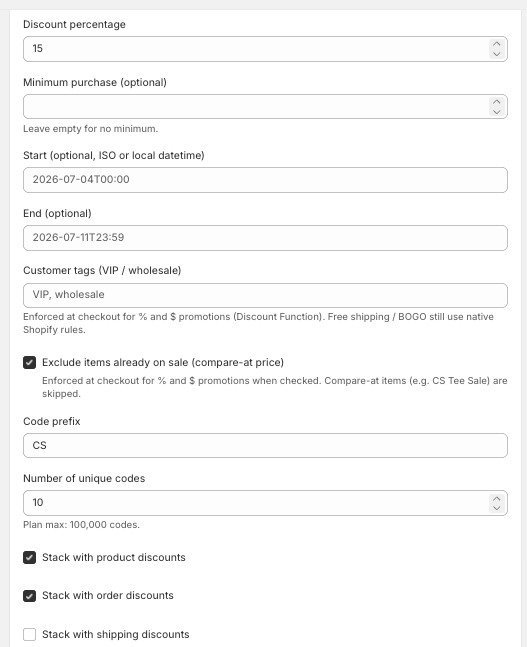
- Minimum purchase — optional cart minimum before the discount applies
- Start / End — optional schedule (datetime)
- Customer tags — e.g. VIP, wholesale; enforced at checkout for percent and fixed-amount promotions
- Exclude items already on sale — skips compare-at / sale-priced items for percent and fixed-amount
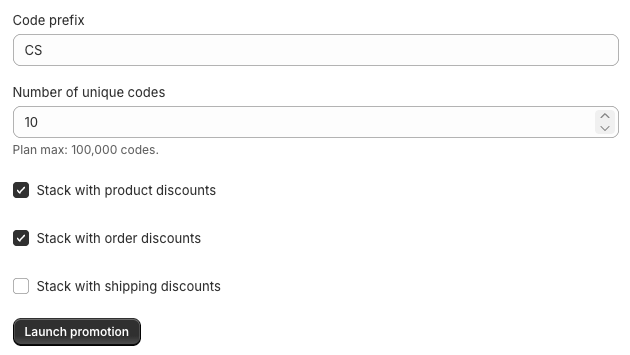
- Stacking — combine with product, order, and/or shipping discounts (Shopify combine settings)
Free shipping and BOGO use Shopify's native discount rules for some targeting; percent and fixed-amount use Catalog Sale's checkout Discount Function for sale exclusion and tags.
7. Discount codes and bulk codes
- Set How it applies to Discount codes / coupons.
- Set a Code prefix (e.g. CS).
- Set Number of unique codes (plan maximum applies).
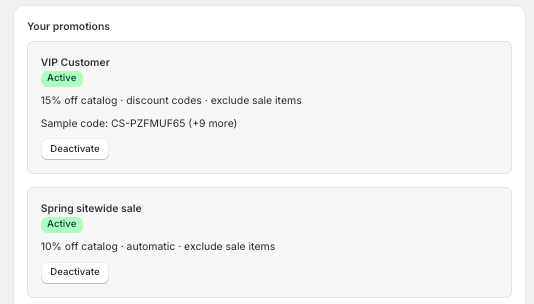
After launch, the promotion card can show a sample code and how many more codes were generated. Share codes with customers or campaigns as you normally would.
8. Manage promotions
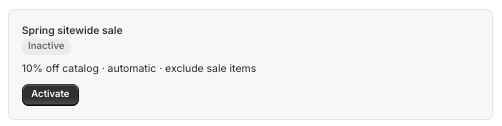
Your promotions lists every campaign with Active or Inactive status.
- Deactivate — turns the Shopify discount off; frees an active-campaign slot on capped plans
- Activate — turns it back on (if your plan allows another active campaign)
9. Verify in Shopify Discounts and at checkout
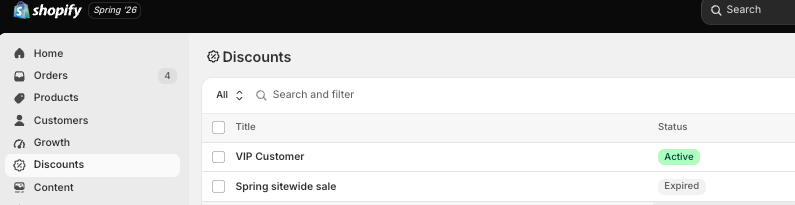
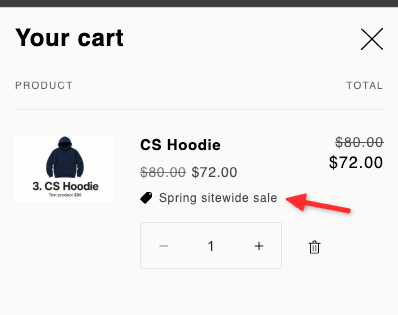
- In Admin, open Discounts — your Catalog Sale promotion appears as a native Shopify discount.
- On the storefront, add a product to cart and check out — confirm the discount line (use a test gateway on development stores).
10. Plan & usage and upgrades
Open Plan & usage (nav or Sales primary action). On that page you will see:
- Current usage — your plan name, active campaigns used vs limit, and discounted orders this UTC month
- Plans — four self-serve cards: Free, Growth, Pro, and Scale (Subscribe / Change via Shopify Billing)
- Manage subscription — cancel or change a paid plan (access continues until the period end date shown; that period is already paid and not prorated)
There is no Enterprise / custom / contact-to-upgrade path. Billing errors can be emailed to support@glmkapps.com; plan changes stay in-app.

11. Plans and what you get
Self-serve plans are Free, Growth, Pro, and Scale. All paid upgrades and plan switches run through Shopify Billing on the Plan & usage page (monthly)—no email required to change plans. Feature set is the same across plans — limits and support level scale up.
Free — $0
- Full Catalog Sale features (sitewide percent / amount, shipping promos, BOGO, automatic or codes)
- 1 active campaign at a time
- 500 discounted orders per month
- Up to 100 unique bulk codes per campaign
- Standard email support
Growth — $12 / month
Everything in Free, plus:
- Up to 10 active campaigns
- Up to 2,500 discounted orders per month
- Up to 10,000 unique bulk codes per campaign
- Priority email support
Pro — $39 / month
Everything in Growth, plus:
- Up to 50 active campaigns
- Up to 10,000 discounted orders per month
- Up to 100,000 unique bulk codes per campaign
- Priority support for higher-volume stores
Scale — $199 / month
Everything in Pro, plus:
- Up to 100 active campaigns
- Up to 50,000 discounted orders per month
- Up to 500,000 unique bulk codes per campaign
- Priority support for high-volume stores
| Plan | Price | Active campaigns | Discounted orders / month | Bulk codes / campaign |
|---|---|---|---|---|
| Free | $0 | 1 | 500 | 100 |
| Growth | $12 / month | 10 | 2,500 | 10,000 |
| Pro | $39 / month | 50 | 10,000 | 100,000 |
| Scale | $199 / month | 100 | 50,000 | 500,000 |
12. Tips and limits
- Only discounted orders that use your Catalog Sale promotion count toward the monthly order limit.
- Hitting the order limit blocks new launches until the next UTC month or an upgrade; existing promotions can keep working (see in-app banners).
- Deactivate before launching a second campaign on Free.
- Promotion names should be clear — they appear on discounts and order lines.
- Test on a development store with Bogus Gateway before a live sale.
13. Support
- Email: support@glmkapps.com
- Web: glmkapps.com/support
- Privacy: glmkapps.com/privacy
- Terms: glmkapps.com/terms
Last updated: July 15, 2026